Meetings & documents
Create client-ready BEOs and room contracts
The Meetings workspace keeps banquet event orders and guest room contracts together, with searchable documents and PDF output for completed work.
Best for
Sales, catering, and events teams
Time
10–15 minutes
Outcome
A saved BEO or guest room contract ready for review
Before you start
- The client or group information is available
- You know whether you need a BEO or room contract
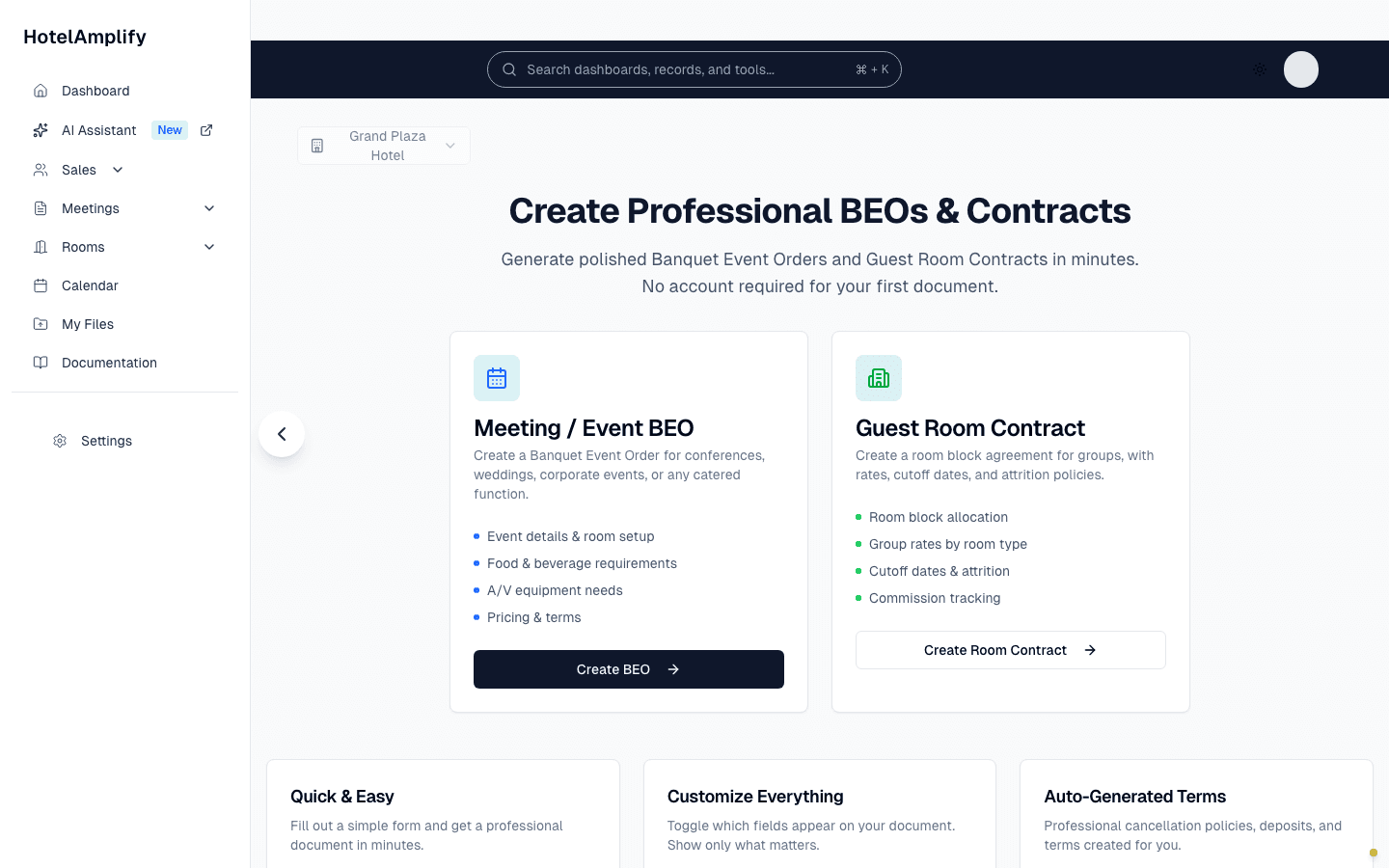
Start with a BEO for a catered event or a room contract for a group block, then complete the guided form.
Open in HotelAmplifyDocument types
Meeting / Event BEO
Capture event details, meeting space, room setup, rates, catering, AV, timing, and terms.
Guest Room Contract
Capture client information, room blocks, rates, cutoff dates, and contract terms.
Create a document
Open the Meetings workspace
Go to Meetings and select Create Document.Choose the document type
Select Meeting / Event BEO for an event order or Guest Room Contract for a room block agreement.Complete the guided form
Add the hotel, client, event, room, rate, catering, AV, or terms information requested for that document type.Review and save
Check the finished document, save it, and use the available PDF action when the document is ready to export.
Find and manage saved documents
Open Dashboard → Meetings to search by hotel, event, or client and filter by document type. Open a document to review its details and status.
- Draft: the document is still being prepared.
- Sent: the document has been sent for review.
- Signed: the document is recorded as signed.
- Cancelled: the document is no longer active.
You'll know it's done when
The document is saved under the right event or room block, its status is clear, and the team knows whether it still needs edits, review, signature, or export.
Demo mode and PDF exports
PDF downloads and some document management actions are disabled in demo mode. Start a trial before relying on export or deletion workflows.