Sales & catering
Take a group from inquiry to contracted business
A group block reserves rooms at negotiated rates for a date range. HotelAmplify keeps the group, account, contact, room rates, contract, and event details together as the booking develops.
Best for
Sales, catering, and events teams
Time
10–20 minutes
Outcome
A group block with rates, status, and client documents
Before you start
- Room types are configured for the property
- The group dates, account, and primary contact are available
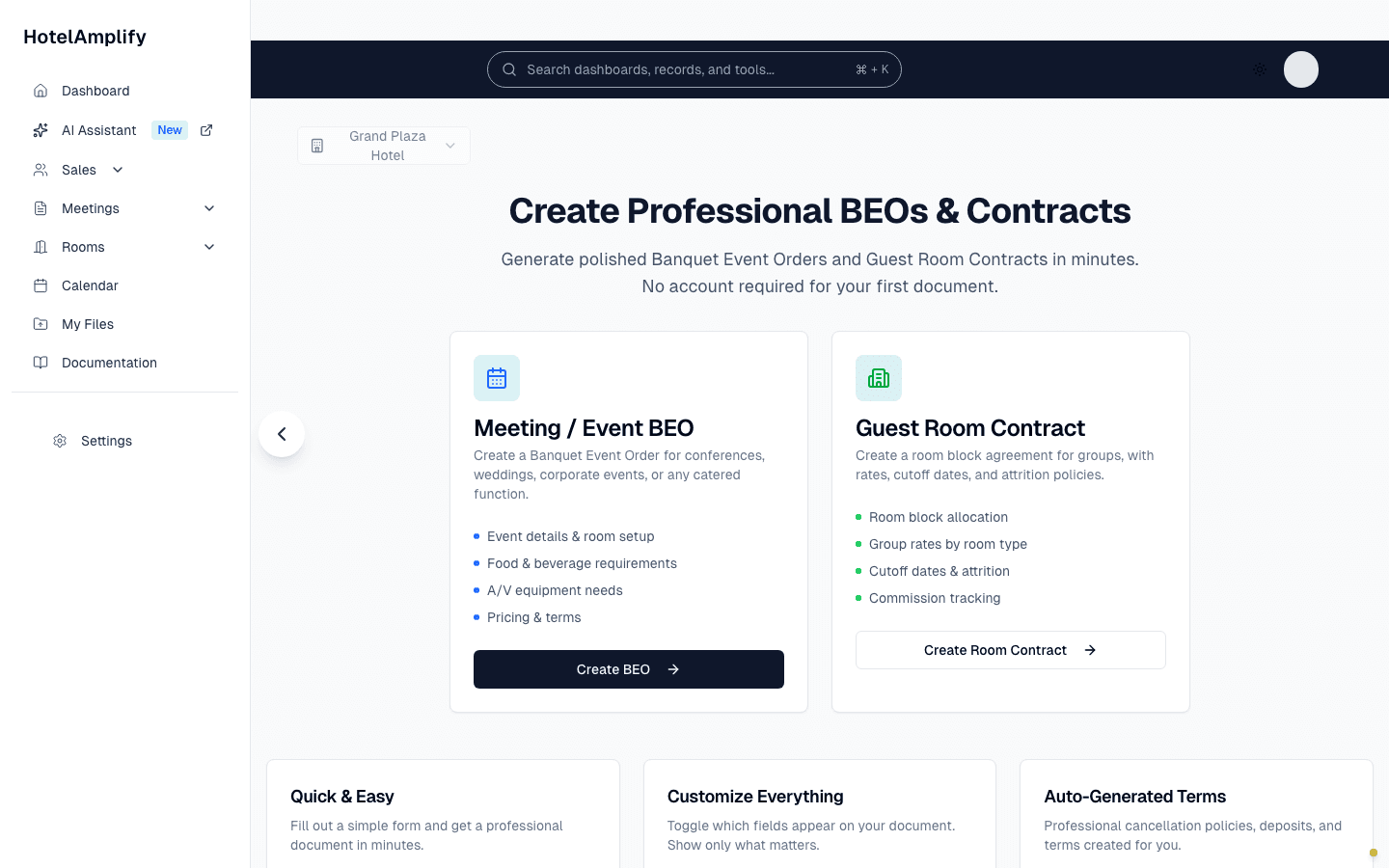
Once the room block and event details are ready, use the document workflows to prepare the client-facing contract or BEO.
Open in HotelAmplifyCreate the group
Open the group wizard
Go to Sales → Groups and select Add Group.Enter the group details
Add the Group Name, choose a Status, and link the group to an Account and Contact. The available statuses are Tentative, Definite, Cancelled, and Archived.Set the dates and shoulder dates
Add the block's start and end dates. Turn on Include shoulder dates when guests should receive the group rate before or after the main block.Build the room block
Choose whether to use one flat rate across the block or enter rates night by night. Add room counts and rates for each configured room type.Review the live totals
Check Total Room Nights, Average Rate, and Total Revenue before saving.
Room types come from hotel setup. If the right room type is missing, finish Setting up your Hotel before building the block.
Work with an existing group
Open a group from the table to review its four working areas:
- Details: name, status, account, contact, and dates.
- Room Rates: room counts and nightly rates.
- Production: room nights and revenue by room type.
- Contract: generate, edit, preview, print, or send the group contract.
Prepare the contract
Choose a contract template
HotelAmplify fills the template with the group's details, dates, and room rates.Edit and preview the wording
Make adjustments in the editor, then use Preview to review payment and signature sections.Print or send the document
Use print preview to print or save the contract, or select Send Contract to email it after reviewing the recipient and message.
Connect event functions and BEOs
Event details live on Functions. Open Sales → Functions and use the Catering & AV tab to manage menus, setup, audio-visual needs, and timing in the Banquet Event Order. Functions also have their own Contract tab.
You'll know it's done when
The group has a clear status, linked account and contact, room rates that add up, and the documents your client needs for review.
Demo mode note
Sending contracts by email is disabled while you are exploring in demo mode. Start a trial before sending documents to real recipients.