Rooms & operations
Update room status for housekeeping
The Housekeeping board gives staff one place to find rooms, filter the list, and keep operational status current as rooms move through the day.
Best for
Housekeeping and front-office teams
Time
1–2 minutes per room
Outcome
Room status reflects the current operating condition
Before you start
- The property and active rooms are configured
- You know the current condition of the room
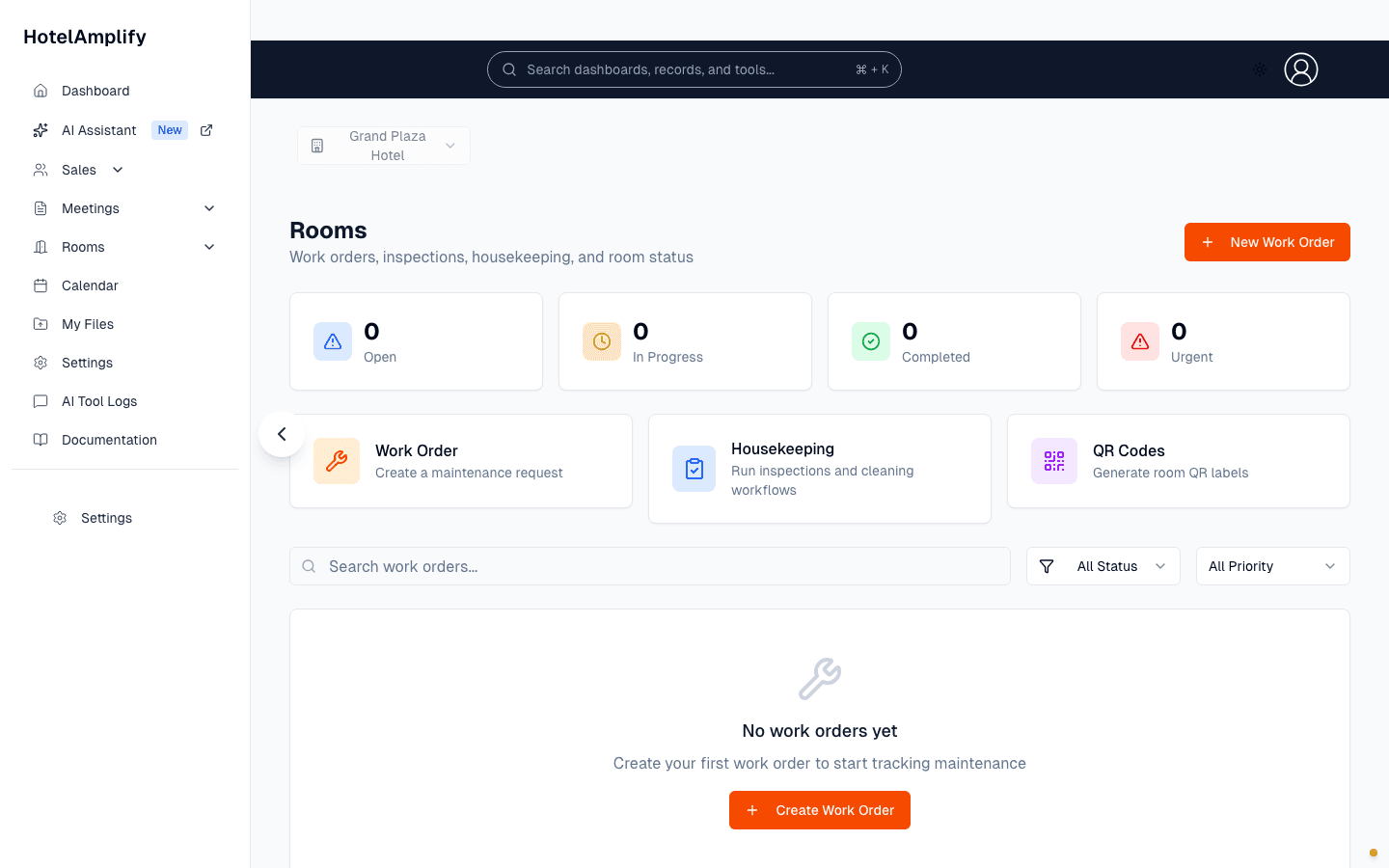
From Rooms, choose Housekeeping to work from room status instead of individual maintenance requests.
Open in HotelAmplifyRoom statuses
- Clean: ready for the next operating step.
- Dirty: needs housekeeping attention.
- Inspected: has completed the inspection step.
- Out of Order: unavailable because of a maintenance or room condition.
- Out of Service: unavailable for an operational reason that is not a normal clean/dirty transition.
Update a room
Open the Housekeeping board
Go to Housekeeping.Find the room
Search by room number or note, or filter by Status and Floor.Set the current status
Open the room's status control and select the new status.Continue through the queue
Confirm the status change, then continue through the filtered list.
Keep the board useful
Update status as work is completed rather than in batches at the end of a shift. If a room needs physical work, create a linked work order so the operational status and maintenance task can be tracked together.
You'll know it's done when
The room appears in the correct status group, making the next housekeeping or front-office action clear to the rest of the team.
If a room should be unavailable
Room status is property-specific. Before changing a room, confirm that you are working in the intended hotel context. Use Out of Order or Out of Service when the room should not be treated as normally available.