Rooms & operations
Run an inspection checklist
Use inspection templates to check a room or property, record pass/fail results, and leave a clear follow-up trail for the team.
Best for
Managers and inspection teams
Time
5–10 minutes
Outcome
A scored inspection with actionable follow-up
Before you start
- At least one inspection template is available
- The room or property context is known
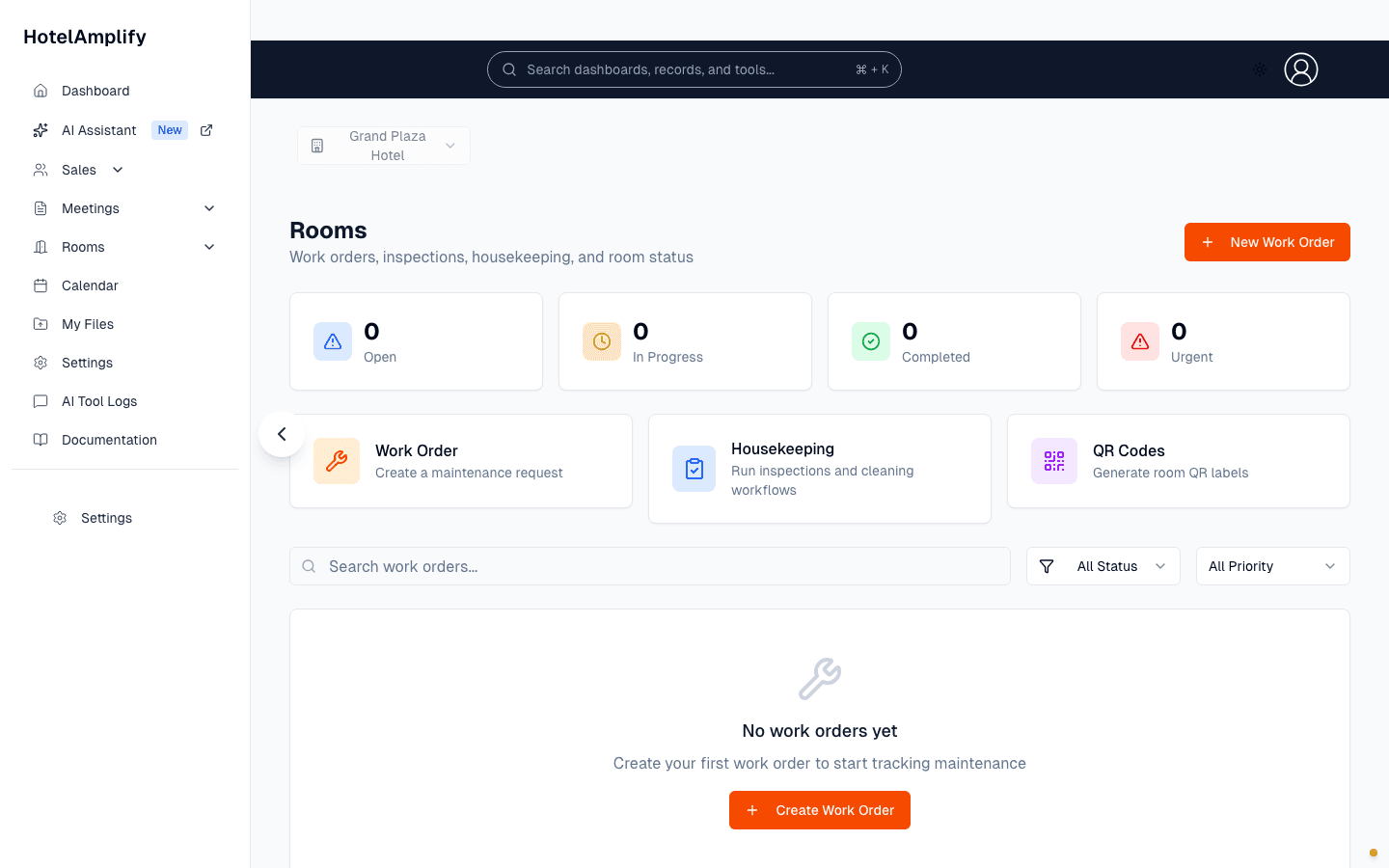
Use Inspections to run a repeatable checklist instead of relying on an unstructured note or memory.
Open in HotelAmplifyBefore you begin
Inspection templates provide the checklist items used during a run. If no template is available, an administrator can create one from the inspection workflow.
Run an inspection
Start a new inspection
Open Inspections and select New Inspection.Choose the template and scope
Choose the required Template. Optionally choose a Room, or leave it as a property-wide inspection.Run the checklist
Review each item. Checked items pass; clear items are recorded as failures.Add context and save
Add optional Notes, then select Save Inspection.
Review results
Search by template, room, or notes and filter by status. Inspection records can show a score, checklist results, inspector, and completion time.
- Pending and In Progress: the inspection still needs work.
- Passed: the checklist met the expected result.
- Failed or Needs Follow-up: review the failed items and create the necessary operational work.
You'll know it's done when
The inspection record shows its checklist results, score when available, room or property scope, and completion details for later review.
If an item fails
Use notes and a work order to give the next person enough context to act. Do not mark an inspection passed simply to remove it from the queue.